6 min read
How to use Claude to analyse your MoMo statement and plan your savings

Your MoMo statement is a starting point, not a verdict
You know money passed through your wallet. But how much went on food, transport, data or transfers — and how much could realistically have stayed with you? A mobile money statement can help you see patterns that individual payment notifications hide.
Claude can organise those transactions, suggest a savings plan and prepare GoalGrow goals in your My Goal Needs Money account through the connection. Nothing is created until you log in to MG and enter your MG PIN on the approval screen; then you approve the mobile money prompt on your phone. A picture is optional: Claude can describe one and MG makes it, after a safety check.
1. Get your statement and protect your privacy
Request a statement through your mobile money provider's official channels. Start with a complete recent month; several months can help if your income changes from week to week. Keep an untouched copy so you can check the figures later.
Before uploading a copy, remove names, phone numbers, wallet identifiers and transaction references you do not need for the analysis. Keep the dates, amounts and useful descriptions. Never share your MoMo PIN, app PIN, password or one-time codes with Claude.
A statement is sensitive financial information. Review Claude's privacy and data settings and share only what you are comfortable sending to that service. The statement goes into your Claude conversation, not into the My Goal Needs Money connection.
2. Upload it to Claude and ask where the money went
Attach the redacted statement to a Claude conversation using the upload option available in your account. A readable PDF or CSV is useful; if the file cannot be read, export a supported format or provide a small redacted transaction table instead.
Try this prompt: ‘Analyse this MoMo statement in Ghana cedis. Separate money received, spending, transfers, cash-outs and fees. Group spending into food, transport, data, bills and other categories. Mark unclear transactions rather than guessing. Show your totals and ask me about anything you cannot classify.’
Check the answer against the statement. A transfer to another wallet you own is not necessarily spending. A cash-out does not tell Claude what you bought with the cash. Money from a friend might be repayment, not income. Ask it to correct those assumptions before using the result.
3. Turn the analysis into savings goals you can afford
Tell Claude about expenses the statement cannot show: rent paid elsewhere, school fees, debt repayments, dependants and money you need to keep available for emergencies. Ask for options, not a confident instruction to save every spare cedi.
Try: ‘Using the corrected figures and the essential costs I have explained, suggest up to three realistic savings goals. For each, propose a target, a deadline and a daily, weekly or monthly contribution that matches my income. Leave a buffer for essentials and emergencies, account for saving fees, and explain your assumptions. If the numbers do not support saving yet, say so.’
You might choose rent, next term's school fees or a business purchase. Start with the goal that matters most and review the combined cost of any plans. AI suggestions can be wrong; they are planning help, not a guarantee or a substitute for qualified financial advice.
4. Connect Claude to MG
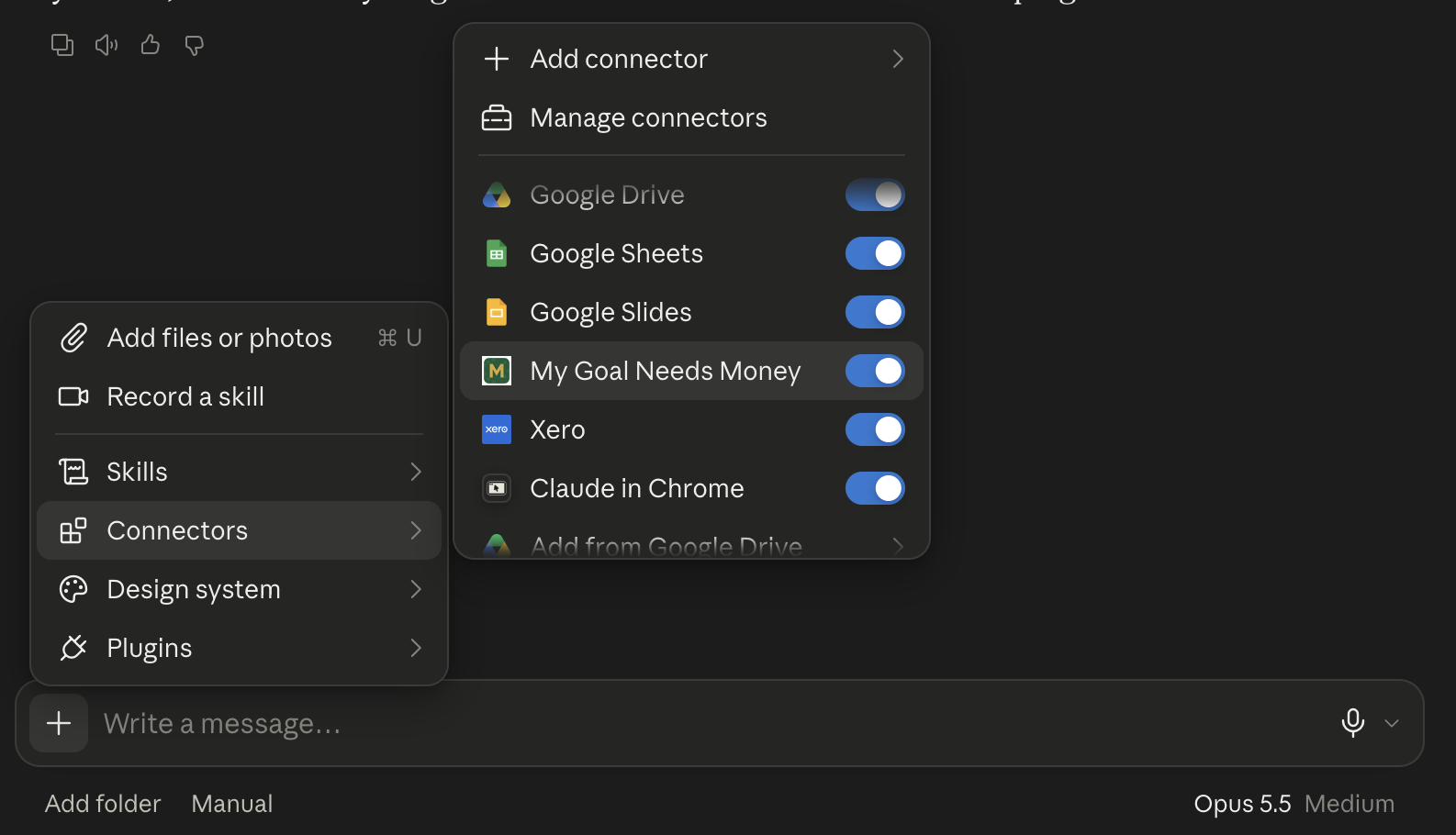
MG — short for Money Goals — is the same app as My Goal Needs Money; you can say “MG” or “Money Goals” to Claude. Connecting takes four steps: (1) Press the button below, then “Add MG to Claude” — the name and address (https://mygoalneeds.money/mcp) are filled in; press Add. (2) Press Connect next to MG and sign in with your MG phone number and password, or Google. (3) In a new chat, press “+”, open Connectors and switch MG on. Switch Claude in Chrome off — otherwise Claude may open the website instead of using MG. (4) Ask: ‘Using MG, how many goals do I have?’
If Claude says it opened Chrome or asks you to sign in on the website, MG is not switched on or not signed in for that chat. Repeat steps 2 and 3, then start your question with “Using MG”.
Then ask: ‘Using MG, list my existing savings goals and summarise what I have saved. Compare those commitments with the plan we just discussed so I do not duplicate a goal or overcommit.’
The connection can list goals, read details and successful payments, summarise your account and create GoalGrow goals with an optional picture. It does not read your entire MoMo history, upload statements or authorise payments. Connecting an assistant is not permission to debit your wallet. If you connected earlier, remove MG in Claude and add it again to pick up the latest.
5. Let Claude prepare your goal, then approve it in MG with your PIN
Confirm the name, target, contribution and frequency, then ask: ‘Create a GoalGrow goal in my account called Rent advance, with a GH₵6,000 target and GH₵100 weekly contributions. Use a picture of a new apartment door.’ These are example amounts, not a recommendation. Claude prepares the goal and asks you to log in to MG. An approval screen appears describing the goal; enter your MG PIN to create it. MG then sends a mobile money prompt to your phone; approve it with your MoMo PIN. The picture is optional; if it fails MG’s safety check, the default picture is used.
Review the schedule, wallet and total charge shown in the app before continuing. Only approve a mobile money prompt that you initiated, with the correct merchant and amount, using your PIN on the provider's own prompt — never in Claude. Automatic wallet debits depend on successful setup and your provider approval, not on the assistant's recommendation.
Once the schedule is approved, saving can happen automatically on the agreed dates. Keep enough funds in your wallet, check payment confirmations and adjust or pause the plan in the app when your circumstances change. Claude does not need your wallet PIN to help you plan or review progress.
6. Make your next Claude conversation a progress check
After confirmed contributions appear in your goal, ask: ‘Use My Goal Needs Money to check my goal's saved amount, target and recent successful payments. Am I on track for the timeline we planned? Suggest adjustments for me to review, but do not assume that a scheduled debit has succeeded.’
That is the loop: your statement helps Claude understand spending; you confirm a plan; Claude prepares the GoalGrow goal; you approve it in MG with your PIN and approve saving in the app; and the connected assistant helps you check recorded progress. Start with one goal and let the picture come into focus, contribution by contribution.
Connect Claude to your goals.
Review your savings with Claude, then set up and approve your chosen plan in GoalGrow.
Connect Claude